Help - Home
Browsing Your Content Library
The left-navigation panel houses your list of content and provides sections of topical resources and tools.
To browse through libraries:
- Click on a topical heading on the left and then click any sub-library to view its contents.
Example: Click on the Human Resources library. Then click the News library.
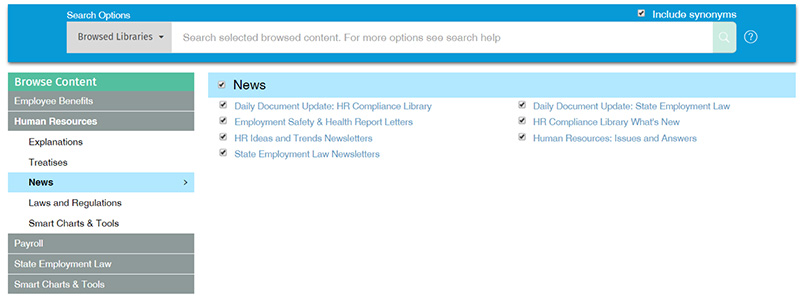
As you look at a Library Browse view, notice these common features:
- The library is highlighted on the left-hand navigation pane.
- The search box at the top of the screen automatically changes to allow you to search Browsed Libraries (which would be just within the library you’ve entered).
- Selection boxes throughout the page allow you to target your search with more precision.
- Content is organized into sub-sections with blue banners. Each title can be clicked on to drill in further.
